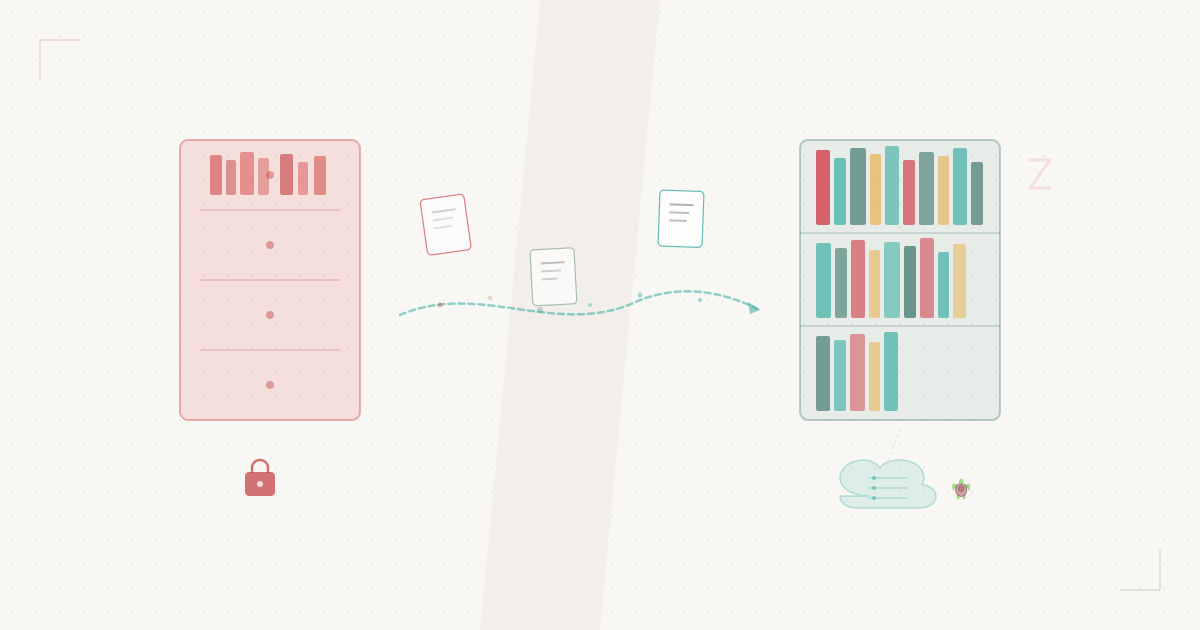
Mendeley locks your references into Elsevier’s ecosystem. The desktop app got discontinued. The web version requires an Elsevier account. Your data lives on Elsevier servers with no WebDAV export option.
Zotero stores references locally and syncs attachments to any WebDAV server you choose. Ridley has a public Android beta. TurtleTech WebDAV storage remains available to existing customers and named previews.
This post walks through the full migration: export from Mendeley, import into Zotero, and configure Ridley.
What you need#
- Zotero 7 (free, runs on Windows, macOS, and Linux)
- A Mendeley account with your existing library
- An activated TurtleTech WebDAV account and a Zotero application password created in the dashboard
- Optionally: the Ridley Android app for mobile access
Step 1: Export from Mendeley#
Zotero has a built-in Mendeley importer that pulls your entire library, including PDFs, annotations, folders, and metadata.
- Open Zotero
- Go to File > Import…
- Select Mendeley Reference Manager
- Sign in with your Mendeley/Elsevier credentials when prompted
- Zotero downloads your full library, including attached PDFs
The import preserves folder structure as Zotero collections. Depending on library size, this takes 2-30 minutes.
If the direct import fails (Elsevier occasionally changes their API), export from Mendeley as BibTeX (.bib) instead:
- In Mendeley, select all references (Ctrl+A / Cmd+A)
- Go to File > Export and choose BibTeX format
- In Zotero, go to File > Import… and select the
.bibfile - Manually drag PDFs into the corresponding Zotero entries
The direct importer handles PDFs automatically. The BibTeX fallback requires manual attachment but preserves all metadata.
Step 2: Configure Ridley storage#
Once your library lives in Zotero, point file sync at Ridley:
- Open Zotero Settings (Edit > Settings on Windows/Linux, Zotero > Settings on macOS)
- Go to the Sync tab
- Under File Syncing, change the dropdown from “Zotero” to “WebDAV”
- Enter the URL:
https://zotero.turtletech.us/USERNAME/zotero/(replaceUSERNAMEwith your Ridley username) - Enter your TurtleTech username and the generated application password
- Click Verify Server
Zotero confirms the connection with a green checkmark. If verification fails, check that the URL ends with a trailing slash. Generate or revoke the Zotero credential at Dashboard > Account > Credentials > Zotero; do not substitute the main account password.
Step 3: Sync#
Click the green sync button in Zotero’s toolbar (or press Ctrl+Shift+S). Zotero uploads your attachment files to Ridley’s EU-hosted storage. Initial-sync duration depends on library size and network capacity.
After the initial sync, Zotero syncs automatically in the background.
Step 4: Get the Android app#
Download the Ridley Android beta from the Google Play link on ridley.turtletech.us. Sign in with your Zotero account. Your library syncs immediately.
The app includes:
- Full-text search across all your PDFs (not just titles)
- On-device OCR for scanned papers
- PDF annotations with highlight, underline, and strikethrough
- Text reflow for comfortable reading on small screens
- Night mode, table of contents, reading position memory
- Citation formatting through the Ridley interface where enabled
What about Zotero’s built-in sync?#
Zotero syncs metadata (titles, authors, tags, notes) through Zotero’s own servers for free, regardless of your file storage choice. WebDAV only handles attachment files (PDFs, snapshots, etc.). You still need a free Zotero account for metadata sync.
This means you get the full Zotero experience. The only difference: where your PDFs physically live.
Storage availability#
Public self-service storage enrollment and public plan pricing are not open. Existing customers use the capacity and service terms in their order. Named preview access is arranged through TurtleTech.